
7 Powerful AI Video Editors for Faster Podcast Production
Compare 7 powerful AI video editors for podcasts and interviews to cut editing time, streamline workflows, and produce polished shows faster.

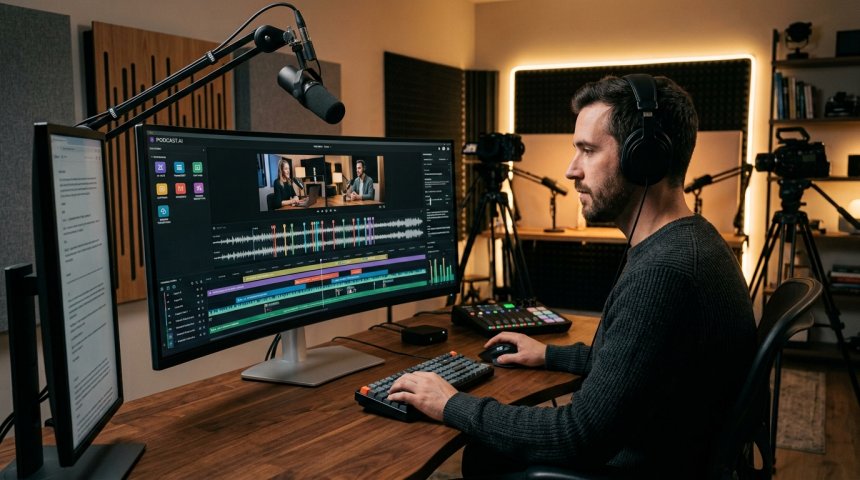
Creating long-form dialogue content used to mean spending three hours in the editing chair for every hour recorded. Creators had to hunt down dead air, balance volume spikes, and manually splice camera angles whenever a guest chimed in. Today, artificial intelligence has completely transformed that workflow. What once required an expert post-production team can now happen in minutes using machine learning models that read your dialogue as raw text.
In this first installment of our podcast post-production series, we examine the shift toward automated editing suites, outline required tools for dialogue-heavy workflows, and inspect how dedicated text-based editors function.
Introduction: The Rise of AI Video Editors for Podcasts and Remote Interviews
The video podcast market has exploded across platforms like YouTube and Spotify. Audiences no longer just listen to long-form conversations; they watch every reaction, nod, and shift in eye contact. However, managing multi-track dialogue, audio leveling, and visual framing across two or three cameras creates massive production bottlenecks.
Traditional timeline editors require creators to scrub back and forth across waveforms to find a specific sentence or eliminate a stumbling sentence. For creators producing weekly or daily episodes, that manual process quickly leads to burnout.
AI-driven video editing tools address this issue by pairing natural language processing with automated video intelligence. Instead of inspecting raw wave files and video tracks, creators interact with interactive transcripts. Cutting out a repeated phrase requires highlighting text and pressing "delete."
Beyond simple text cuts, modern smart editors handle background noise reduction, speaker track separation, and camera switching based on voice activity detection. The shift is not about replacing human creativity. Rather, it removes the technical friction of dialogue editing, giving creators the freedom to focus on the story and the message.
Key Features to Look for in an AI Video Editor for Interview and Dialogue Content
Not every video editor designed for quick social clips works well for hour-long conversations. An interview has a natural rhythm, nuanced pacing, and technical audio requirements that standard action-oriented video tools cannot handle. When choosing an AI editor for spoken-word content, prioritize these core capabilities:
1. Accurate Transcript-Based Editing
The foundation of modern dialogue editing is automatic speech-to-text. The software must generate high-accuracy transcripts that allow you to cut video directly through the script. If you delete a sentence from the text document, the corresponding video and audio tracks should trim instantly, without leaving audio artifacts or abrupt visual jump cuts.
2. Automatic Multicam Switching
Recording an interview with multiple cameras usually results in separate visual feeds: one for Host A, one for Guest B, and a wide shot of both. Synchronizing these angles manually takes serious patience. Top-tier tools offer automatic multicam detection, which tracks which microphone is receiving an active audio signal and automatically cuts to that speaker's camera angle in real time.
3. Smart Cleanup: Filler Words, Pauses, and "Fluff"
Dialogue is naturally messy. Speakers use filler words like "um," "uh," "you know," or pause awkwardly while gathering their thoughts. High-end AI platforms offer one-click cleanup tools that detect these moments across the entire project. For instance, platforms like [Riverside](https://riverside.com/video-editor) include automated tools to strip dead air and detect conversational fluff without ruining the natural cadence of the discussion.
4. Studio-Grade Audio Enhancement
A viewer might forgive imperfect video, but bad audio will drive them away immediately. Core features include: * Background noise suppression: Eliminating air conditioners, computer fans, and outdoor traffic. * Echo cancellation: Correcting natural room reflections from untreated recording spaces. * Smart volume leveling: Equalizing a quiet guest and a loud host so listeners do not need to adjust the volume.
5. Repurposing and Social Extraction
Long-form episodes need discovery engines. The ideal editor should be able to parse an hour-long interview, identify highlight-worthy hooks, and generate vertical clips formatted for TikTok, Instagram Reels, and YouTube Shorts—complete with animated subtitles.
6. Professional NLE Interoperability
AI tools are fantastic for rough assemblies and fast turnaround times. However, advanced productions often require deep color grading or specialized audio mixing. Look for tools that allow you to export timeline XML files into traditional non-linear editors (NLEs) like [Adobe Premiere Pro](https://en.wikipedia.org/wiki/Adobe_Premiere_Pro) or Final Cut Pro.
Descript: Streamlining Video Podcasting with Transcript-Based Editing and Automatic Multicam
Among the platforms that pioneered text-based video processing, Descript stands out as an industry standard for dialogue editing. It completely rethinks how creators interact with audio and video media.
+---------------------------------------------------------+
|                  DESCRIPT WORKFLOW                      |
|                                                         |
|  [Import Footage] ---> [Automatic Transcription]        |
|                              |                          |
|                              v                          |
|                   [Edit Like a Word Doc]                |
|                    * Highlight & Delete                 |
|                    * Remove Filler Words                |
|                              |                          |
|                              v                          |
|                   [Apply Multicam Switching]            |
|                    * Auto-detect speakers               |
|                    * Switch video angles                |
|                              |                          |
|                              v                          |
|            [Direct Export / YouTube Publishing]         |
+---------------------------------------------------------+
Editing Video Like a Text Document
Descript treats media files like a standard word processor document. When you import video interviews, the software generates an interactive transcript. If a guest stutters or repeats themselves, you simply highlight the unwanted words on your screen and press backspace. The underlying audio and video adjust instantly on the timeline beneath the text.
This approach makes rough-cutting an interview exceptionally fast. Producers can scan a 60-minute interview visually, read through the key talking points, and strip away unnecessary tangents in a fraction of the time required by standard timeline scrubbing. Once the edit is complete, Descript allows creators to publish polished video podcasts directly to YouTube.
Automatic Multicam for Co-Hosts and Guests
One of the most tedious parts of producing visual conversations is cutting back and forth between two or three different angles. In a recent product update, Descript introduced its [automatic multicam](https://www.descript.com/blog/article/new-in-descript-multicam) feature, which simplifies this entire workflow.
The tool works by automatically syncing multiple camera feeds and microphone tracks. Rather than forcing you to cut and swap layers manually on a video track, Descript maps the transcript directly to the designated speakers. The software automatically switches between angles depending on who is talking, creating a smooth, broadcast-style cut without hours of manual keyframing.
Filler Word Removal and Studio Sound
In addition to multicam and transcript cutting, Descript features built-in tools designed to clean up unscripted speech: * Remove Filler Words: The software scans your dialogue to locate common verbal crutches like "ums" and "ahs." You can preview each instance and remove them individually or clear all of them in a single click. * Studio Sound: Descript uses a proprietary neural network to isolate the human voice, scrub room echo, and synthesize high-frequency detail. This makes remote interviews recorded over webcams or affordable microphones sound like they were tracked inside a soundproofed studio booth.
By uniting transcription, audio cleanup, and camera switching into a single interface, Descript serves as a complete all-in-one workstation for dialogue-driven creators.
(Stay tuned for Part 2, where we break down Riverside's conversation-focused recording and editing suite, alongside Adobe Premiere Pro's advanced AI toolset.)
Riverside: Conversation-Focused Recording, Smart Audio Cleanup, and Professional NLE Export
While many platforms focus purely on post-production, Riverside approaches interview workflows from capture to distribution. Known primarily for studio-grade local recording, its integrated video editor turns raw multi-track conversations into publication-ready assets without requiring an external editing suite.
+-------------------------------------------------------------+
|                      RIVERSIDE WORKFLOW                     |
|                                                             |
|  [Separate Tracks] ---> [Text & Chat-Based Editor]          |
|  * Video per guest      * Remove pauses & filler words      |
|  * Audio per guest      * "Find Fluff" content trimming     |
|                                |                            |
|                                v                            |
|                     [Smart Layouts & Audio]                 |
|                     * Smart muting & audio clean            |
|                     * AI clips, show notes & chapters       |
|                                |                            |
|                                v                            |
|             +------------------+------------------+         |
|             |                                     |         |
|             v                                     v         |
|     [Direct Export]                     [Pro NLE XML Export] |
|     Full episode / Shorts               Premiere / Final Cut|
+-------------------------------------------------------------+
Transcript-Based Cuts on Separate Tracks
Riverside records each participant's audio and video directly on their local device before uploading it to the cloud. Once inside the editor, this multi-track architecture gives creators complete control over the conversation. The platform supports transcript-based edits alongside traditional timeline and chat-based editing options.
When you delete a sentence from the generated transcript, the cut reflects across the corresponding participant's video and audio tracks. Because the software tracks individual speakers independently, you never have to worry about accidentally clipping over a co-host's reaction shot while trimming a guest's response.
Automated Cleanup and Conversation Polish
Dialogue rarely flows without interruptions. Riverside provides several targeted features outlined in its [editor documentation](https://support.riverside.com/hc/en-us/articles/16673658517277-Riverside-editor-Overview) to polish informal speech:
- Pause and Filler-Word Removal: Strip awkward silences and verbal ticks with a single click.
- "Find Fluff": An automated analysis tool that flags rambling sections, helping editors maintain a tight narrative pace.
- Audio Enhancement and Smart Muting: Clean room background noise while silencing inactive microphones to eliminate ambient bleed.
- Smart Layouts: Automatically reframe speakers into flexible split-screen or speaker-focused views that adapt to wide and vertical formats.
Repurposing and Professional Handoffs
To help creators grow across modern channels, Riverside includes generative tools that analyze finished recordings. According to official [Riverside AI documentation](https://support.riverside.com/hc/en-us/articles/13315511579037-AI-Tools-Overview), the platform can automatically extract short clips, isolate longer segments, generate full-episode edits, identify conversational hooks, and write full show notes and chapters.
For high-end productions requiring custom visual grading, you are not locked into the browser. Riverside allows you to export non-destructive timelines as XML files directly into industry-standard software like Final Cut Pro or Premiere Pro, ensuring your rough transcript cuts translate straight to professional editing timelines.
Adobe Premiere Pro: Advanced AI Text-Based Editing, Morph Cut, and Multilingual Captions
For teams that require total creative authority over visual effects, audio mastering, and color finishing, Adobe Premiere Pro integrates deep machine-learning tools directly into a veteran non-linear editing workspace. Rather than functioning as a closed web app, Premiere weaves automated assistance into long-form production pipelines.
Text-Based Editing and Speech Cleanup
Premiere Pro includes native text-based editing that transcribes footage automatically upon import. Editors can assemble an entire interview rough cut simply by highlighting text selections within the transcript window and dropping them into the main sequence.
+-------------------------------------------------------------+
|                 ADOBE PREMIERE PRO AI ENGINE                |
|                                                             |
|  [Raw Footage] ----> [Automatic Speech-to-Text]             |
|                      * 18+ languages supported              |
|                                |                            |
|                                v                            |
|                 [Assembly & Refinement Tools]               |
|                 * Bulk pause deletion                       |
|                 * Filler-word detection                     |
|                 * Morph Cut (seamless jump-cut smoothing)   |
|                                |                            |
|                                v                            |
|                 [Broadcast-Ready Master Timeline]           |
+-------------------------------------------------------------+
The system automatically detects filler words and pauses, allowing editors to bulk-delete gaps across multi-hour interviews in seconds. Unlike lighter consumer software, Premiere gives users granular control over minimum pause lengths, ensuring natural conversational rhythm remains intact.
Smooth Dialogue Transitions with Morph Cut
One of the most persistent issues in interview editing is the visible jump cut. When you remove a repetitive sentence or trim an awkward stumble from a single-camera shot, the subject's head often snaps abruptly to a new position.
Premiere solves this through its Morph Cut transition. By using advanced optical-flow technology, Morph Cut analyzes face tracking and background pixels across the cut point. It generates custom intermediate frames that blend the two takes together seamlessly, making mid-sentence trims appear as though the speaker delivered the thought in a single unbroken take.
Global Captions and Broadcast Accessibility
Modern distribution demands accessibility. Premiere Pro features integrated speech-to-text transcription supporting over 18 languages. Editors can convert conversational audio into fully stylized subtitle tracks instantly, burning them into the video or exporting standard sidecar files for broadcast and web players.
CapCut: Fast Social Repurposing, Automated Short-Form Clips, and Animated Subtitles
While long-form episodes build core audiences, short-form vertical video drives discoverability. Originally built around mobile-first content creation, CapCut has evolved into a popular editing solution for creators who need to convert lengthy recordings into engaging mobile clips quickly.
+-------------------------------------------------------------+
|                     CAPCUT CLIP PIPELINE                    |
|                                                             |
|  [Long Interview] -> [Auto Video Editor Engine]             |
|                      * Trims core highlights                |
|                      * Re-centers active subjects           |
|                                |                            |
|                                v                            |
|                     [Stylized Engagement Layer]             |
|                     * Auto-subtitles for podcasts           |
|                     * Kinetic text presets & animations     |
|                                |                            |
|                                v                            |
|              [Multi-Platform Vertical Publishing]           |
|              TikTok / Reels / YouTube Shorts                |
+-------------------------------------------------------------+
Turning Long Interviews into Short-Form Content
Repurposing a 60-minute interview into bite-sized clips can take hours of manual scanning. CapCut simplifies this through its automated editing tools. According to [CapCut auto-editing features](https://www.capcut.com/tools/auto-video-editor), the platform can automatically trim long-form footage into focused vertical clips, identifying self-contained stories and impactful dialogue exchanges. Editors retain full flexibility to review the AI-selected cuts, adjust timing markers, and refine individual transitions prior to export.
Podcast-Ready Word-by-Word Captions
Silent viewing is common on mobile feeds, making readable captions necessary. CapCut provides a dedicated auto-caption tool built specifically to generate subtitles for video podcasts and talking-head clips.
The software transcribes speech into text tracks, letting users customize fonts, colors, and motion presets. Features like single-word highlighting, kinetic animations, and automatic text styling mirror the visual pacing popularized across TikTok, Instagram Reels, and YouTube Shorts.
By combining rapid automated clipping with expressive captioning tools, CapCut gives interview producers an efficient pipeline to keep their social media presence active between major episode drops.
Feature Comparison: Evaluating Accuracy, Multicam Support, Audio Polish, and Export Workflows
Selecting the right tool requires matching your operational bottlenecks to each platform's distinct strengths. While browser tools prioritize automated turnaround, traditional digital audio workstations and non-linear editors focus on frame-accurate precision.
| Feature Category | Descript | Riverside | Adobe Premiere Pro | CapCut |
|---|---|---|---|---|
| Primary Editing Model | Script and text editing | Transcript, chat, and timeline | Advanced non-linear timeline with text integration | Clip-based timeline with auto-repurposing |
| Multicam Capabilities | Automated multicam camera angle switching | Separate track recording with smart layouts | Deep multi-camera sequence synchronization | Manual multi-layer stacking |
| Audio Enhancement | Studio Sound voice isolation | AI audio clean-up and smart muting | Built-in audio repair panel and spectral tools | Basic background noise reduction |
| Transcript Accuracy | High (proprietary text-sync engine) | High (optimized conversational engine) | High (supports 18+ languages natively) | Moderate to high (optimized for short clips) |
| Export Flexibility | Direct YouTube publishing, timeline exports | XML export to Premiere and Final Cut Pro | Industry-standard export formats | Direct social media publishing |
+-----------------------------------------------------------------------+
|                     CORE EDITING CAPABILITY SPECTRUM                  |
|                                                                       |
|  Speed & Automation <--------------------------------> Deep Control   |
|                                                                       |
|      [CapCut]            [Riverside]       [Descript]    [Premiere]   |
|   Fast viral clips     Remote capture &     Document     Granular     |
|   & auto-subtitles    transcript cleanup    assembly     finishing    |
+-----------------------------------------------------------------------+
Transcript Precision and Text Manipulation
Text-based editing tools vary noticeably in how they handle live speech. [Descript](https://www.descript.com/podcasting) pioneered the process of treating audio like a text document, allowing users to cut filler words, rearrange entire paragraphs, and smooth out speech patterns by manipulating the transcript. Similarly, the [Riverside video editor](https://riverside.com/video-editor) links text selections directly to separate participant tracks, ensuring cuts on one guest do not compromise the conversational flow of another.
For international productions, Adobe Premiere Pro provides robust multilingual support across 18 languages, allowing cross-border teams to assemble rough cuts directly from foreign-language interviews without third-party translation software.
Multicam Handling and Camera Switching
Managing multiple cameras is critical for visual pacing in studio podcasts. Descript simplifies this through an automated multicam feature that identifies the active speaker and toggles angles automatically. Riverside applies smart layout logic directly to separate recorded feeds, dynamically re-framing speakers for split-screen or focused views. Conversely, Premiere Pro uses traditional multi-camera sequences, which provide complete frame-by-frame authority over every camera switch, making it better suited for complex multi-camera studio rigs.
Audio Repair and Export Options
Clean dialogue remains the top priority for spoken-word content. Riverside offers background noise cleanup and smart muting to reduce microphone bleed between adjacent speakers. Descript features voice isolation that reconstructs damaged voice frequencies to mimic studio microphones.
When your project outgrows basic web tools, export flexibility becomes vital. Riverside supports professional post-production workflows by exporting non-destructive XML timelines directly into Adobe Premiere Pro or Apple Final Cut Pro. CapCut focuses on instant mobile outputs, letting users push finished vertical content directly to video sharing platforms.
How to Choose the Best AI Video Editor Based on Your Production Setup and Skill Level
Choosing the most effective platform depends on your studio hardware, editing experience, and distribution goals. Selecting the wrong application often leads to wasted time and unnecessary software subscriptions.
+-----------------------------------------------------------------------+
|                    DECISION MATRIX FOR PODCAST EDITORS                |
|                                                                       |
|  Are you recording remote guests across the web?                      |
|   ├── YES ──> [Riverside] (Local track recording + fast cleanup)      |
|   └── NO  ──> What is your primary output format?                     |
|                ├── Short viral reels ──> [CapCut]                     |
|                ├── Narrative video podcast ──> [Descript]             |
|                └── High-end multi-cam broadcast ──> [Premiere Pro]    |
+-----------------------------------------------------------------------+
The Solo Creator and Social-First Producer
If your production strategy focuses on short clips for YouTube Shorts, Instagram Reels, and TikTok, your software needs rapid turnarounds and engaging visual elements. CapCut fits here, especially for creators without formal video editing training. Its automated clip extractors, preset transitions, and animated captions allow solo operators to generate social snippets within minutes of recording.
The Remote Interview Host
Interview shows featuring remote guests face common issues like fluctuating internet connections and low-grade webcams. Riverside is ideal for this structure because it combines local multi-track recording with cloud editing tools. It records high-resolution source files directly on each participant's computer before uploading them to the cloud. You can remove conversational gaps, clean up room echo, and arrange side-by-side layouts in your web browser without touching timeline tracks.
The Narrative Podcaster and Content Team
Shows that use detailed narrative storytelling, voiceover tracks, and documentary-style inserts benefit from Descript. Its document-style workspace makes scripting, scratch-track recording, and structural edits straightforward for production teams accustomed to working in text documents. Content managers can quickly review conversational transcripts, cut entire sections, and assemble the core narrative flow before handing the assets to visual specialists.
The Broadcast Studio and Post-Production Professional
Full commercial studios running multi-camera studio setups, high-end cinema cameras, and hardware sound desks require absolute technical authority. Adobe Premiere Pro remains the industry standard for this tier. Its native AI tools—such as text-based rough cutting, pause deletion, and Morph Cut transitions—accelerate assembly while preserving professional grading tools, multi-track audio mastering, and standard color management pipelines.
Step-by-Step Workflow: From Multi-Track Interview Recording to Final Video Distribution
A clean, repeatable post-production process keeps recurring podcast episodes on schedule and prevents technical errors.
+-----------------------------------------------------------------------+
|                   5-STAGE INTERVIEW PRODUCTION PIPELINE               |
|                                                                       |
| [1. Capture]     Local multi-track recording per speaker              |
|       │                                                               |
|       ▼                                                               |
| [2. Assembly]    Automated transcript generation & text-based cuts    |
|       │                                                               |
|       ▼                                                               |
| [3. Polish]      Filler word removal, audio leveling & visual framing |
|       │                                                               |
|       ▼                                                               |
| [4. Export]      Full episode render & high-res timeline XML export   |
|       │                                                               |
|       ▼                                                               |
| [5. Repurpose]   Vertical aspect crop & animated social subtitles     |
+-----------------------------------------------------------------------+
Step 1: Capture Multi-Track Audio and Video
Record separate audio and visual tracks for every speaker. Isolating each participant prevents microphone bleed and allows you to adjust voice levels, apply targeted EQ, or switch camera views without affecting other speakers.
Step 2: Ingest and Automated Transcription
Import your isolated video and audio tracks into your chosen editor. Allow the speech-to-text engine to transcribe the dialogue. Ensure the system accurately tags distinct speakers across individual channels so the transcript reflects conversational exchanges correctly.
Step 3: Text-Based Structural Assembly
Review the generated transcript to shape the interview structure. Highlight and cut conversational tangents, false starts, and repeated thoughts directly in the text editor. Removing these elements in the transcript cleans the corresponding video timeline without requiring manual slice tools.
Step 4: Dialogue Cleanup and Visual Polishing
Run automated filler-word sweeps to remove repeated *ums*, *uhs*, and extended silences. Apply automated audio processing to balance vocal loudness, suppress ambient noise, and mute inactive microphones. If you are using a single-camera shot, apply subtle transition tools like Premiere's Morph Cut to smooth remaining jump cuts across your edits.
Step 5: Final Export and Repurposing
Render the final long-form episode in high definition for distribution on major podcasting and video platforms. Once the finished cut is locked, use your editor's auto-clipping tools to extract focused segments. Convert these moments to vertical aspect ratios, apply auto-generated captions, and export the short-form assets for social promotion.
Eliminating Distractions: Best Practices for Filler Word Removal and Smooth Jump Cuts
Pacing makes or breaks a recorded conversation. Nothing pulls viewers out of an insightful discussion faster than repetitive pauses, stutters, and rambling hesitations. Modern platforms make finding conversational clutter effortless, but using these tools poorly can ruin natural dialogue.
Avoid the Robot Trap: The Risk of Over-Trimming
When creators first discover bulk deletion for *ums*, *ahs*, and pauses, the urge to purge every imperfection is strong. Doing this creates an unnatural cadence. Humans naturally pause to collect their thoughts, emphasize key ideas, and breathe.
If you cut every breath and micro-pause, dialogue begins to sound robotic and frantic. Use automated detection to identify problem areas, but retain breathing room. In Adobe Premiere Pro, users can set minimum pause duration thresholds. Setting a limit between 0.7 and 1.2 seconds catches awkward silences while preserving conversational rhythm.
Smoothing Jump Cuts on Single-Camera Footage
Cutting filler words from a multi-camera setup is simple because you can cut away to a reaction angle. Single-camera interviews pose a harder challenge: every deletion causes the subject’s head to snap instantly into a new position.
To hide these jarring jumps without re-recording, professional editors rely on two proven techniques:
- Optical Flow Transitions: Built-in interpolation tools, such as Premiere Pro’s Morph Cut, analyze background pixels and head positions across the edit point, blending consecutive frames together into one smooth movement.
- Focal-Length Punch-Ins: If optical blending produces visual warping, crop the footage by 15% to 20% right at the cut. Changing the shot from a medium view to a close-up makes the trim look like an intentional camera shift rather than a patched mistake.
Content Repurposing at Scale: Creating Social Shorts, Show Notes, and Chapters with AI
Publishing a full-length video podcast is only the first step. Long-term audience growth often relies on repurposing foundational episodes into smaller, bite-sized assets.
+-----------------------------------------------------------------------+
|                 AI CONTENT REPURPOSING ECOSYSTEM                      |
|                                                                       |
|                     [Master Interview File]                           |
|                                │                                      |
|          ┌─────────────────────┼─────────────────────┐                |
|          ▼                     ▼                     ▼                |
|   [Short-Form Clips]    [Written Assets]    [Navigation Data]         |
|   • 9:16 Viral Reels    • SEO Show Notes    • Video Chapters          |
|   • Dynamic Captions    • Key Takeaways     • YouTube Timestamps      |
|   • Speaker Tracking    • Social Quotes     • Topic Outlines          |
+-----------------------------------------------------------------------+
Turning Long Discussions into Viral Social Clips
Extracting short excerpts by scrubbing through a two-hour interview manually takes hours. Intelligent repurposing tools scan dialogue transcripts to locate emotional peaks, debates, and punchy answers. Cloud suites like [Riverside](https://support.riverside.com/hc/en-us/articles/13315511579037-AI-Tools-Overview) automatically create short clips, identify natural hooks, and reframe horizontal footage into 9:16 vertical clips.
For rapid social assembly, CapCut lets creators trim extended interviews into focused vertical shorts. Its automated engine generates kinetic captions and applies animated text templates designed to retain viewer attention across mobile feeds.
Generating Automated Show Notes and Timestamps
Producing detailed show notes used to take almost as long as editing the footage. Today, language models embedded in video platforms analyze full transcripts to generate: 1. Accurate Episode Summaries: Quick synopses tailored for podcast directories and email newsletters. 2. Key Takeaways: Bulleted overviews covering the core lessons or themes of the conversation. 3. Structured Timestamps: YouTube-ready chapter markers aligned with specific transcript moments to boost audience navigation and search indexing.
Frequently Asked Questions (FAQ) About AI Video Editing for Podcasts and Interviews
Can AI completely replace a human video editor for podcasts?
No. Machine-learning algorithms excel at repetitive tasks like transcribing speech, tracking active speakers, and spotting filler words. However, they lack human intuition. Software cannot judge comedic timing, detect sarcasm, or craft emotional storytelling. It acts as an assistant that automates mechanical tasks, leaving creative choices to you.
What is the difference between text-based editing and standard timeline editing?
Standard timeline editing requires users to scrub audio waveforms and cut clips with razor tools. Text-based editing links the media to an interactive transcript. Deleting a sentence in the text automatically trims the corresponding video and audio on the timeline, functioning like a word processor.
Do automated filler-word removal tools cut out normal speech by mistake?
They can. Casual speech frequently blends words together. An algorithm might confuse an elongated word with an unwanted *um* or *er*. Always scan your edits before exporting to verify that conversational phrases were not clipped mid-syllable.
Which video editing software is best for beginner podcasters?
For beginners who need simple workflows, browser-based tools like Riverside provide an easy entry point by combining multi-track recording with transcript-based edits. CapCut is another great starting choice for creators who focus entirely on short social clips.
How do multi-camera AI tools know when to switch speakers?
These systems evaluate incoming volume levels across individual audio feeds. When the host stops talking and the guest answers, the engine detects the active audio track and switches the main visual to that camera angle automatically.
Does AI audio enhancement remove the need for a quality microphone?
No. Audio-restoration tools can clean up light echo and background hiss, but heavily damaged audio often sounds hollow or robotic when over-processed. Capturing clean audio at the source with a dedicated microphone remains necessary for professional results.
Conclusion: Choosing the Right AI Video Editing Stack to Scale Your Video Podcast
Selecting the right editing setup depends directly on your technical goals, technical comfort level, and distribution plan. No single software handles every stage of production perfectly. Successful creators rarely rely on just one application. Instead, they assemble a connected pipeline where each application handles the task it does best.
When building your editing stack, prioritize platforms that fit your core format:
- For fast web-first workflows: Cloud-native platforms simplify the path from recording to final delivery. A creator can track remote conversations in Riverside, use its text-based workspace to trim conversational fluff, and output social assets without managing massive local media files.
- For text-driven multi-camera shows: Editing a conversational show inside a transcript saves hours of manual scrubbing. Using Descript allows teams to automatically sync camera feeds, cut between hosts using automated speaker switching, and assemble polished YouTube video podcasts directly from text documents.
- For high-end broadcast polish: When productions demand advanced color correction, visual effects, and surgical audio restoration, desktop suites remain the gold standard. Using Adobe Premiere Pro gives teams access to deep timeline controls, multi-track audio routing, and direct integration with dedicated post-production tools.
- For agile social syndication: If your growth strategy prioritizes quick vertical reach, mobile-friendly editors like CapCut deliver fast results with automated video captions, punchy animations, and simple templates tailored for mobile feeds.
+-------------------------------------------------------------------+
|               SAMPLE HYBRID PRODUCTION PIPELINE                   |
|                                                                   |
|   [Capture Stage]          [Assembly Stage]       [Output Stage]  |
|   Remote Studio    ───►    Text-Based Trims ───►  Final Master    |
|   (Cloud Tracks)           (XML Export)           (Premiere/NLE)  |
|         │                                               │         |
|         └───────────────────────────────────────────────┼────►    |
|                                                         ▼         |
|                                                    Social Clips   |
|                                                    (Auto-Captions)|
+-------------------------------------------------------------------+
A common trap for new creators is expecting artificial intelligence to fix poor source material. Even the most capable machine-learning models cannot rescue muddy audio captured in a reflective room, nor can they correct unfocused lenses and badly lit interview subjects. Modern editing tools amplify efficiency, but their output quality relies directly on the fidelity of your raw video and microphone signals.
Treat these algorithmic features as reliable production assistants rather than creative decision-makers. Offload the mechanical, repetitive steps: generating base transcripts, locating filler words, syncing visual tracks, and reframing horizontal shots for vertical mobile viewing. By letting software handle the manual labor of post-production, you save creative energy for what matters most: conducting thoughtful interviews, delivering sharp storytelling, and connecting with your audience across every episode.
How to Get Started with Automated Editing Tools
Begin by introducing automated tools into your existing routine one step at a time. Trying to adopt three new platforms simultaneously often leads to setup frustration and unexpected workflow bottlenecks.
First, select a single friction point in your current post-production routine. If transcribing audio takes up most of your schedule, test transcript-based trimming on your next interview file. If extracting vertical snippets takes hours of scrubbing, experiment with automated clipping tools on an older episode to evaluate their framing precision.
By running small tests on standalone segments, you can verify speech accuracy, test audio cleanup settings, and confirm export compatibility before committing to a complete platform migration. Learn each feature gradually to build a sustainable, scalable editing system.
Share
What's Your Reaction?
 Like
0
Like
0
 Dislike
0
Dislike
0
 Love
0
Love
0
 Funny
0
Funny
0
 Angry
0
Angry
0
 Sad
0
Sad
0
 Wow
0
Wow
0